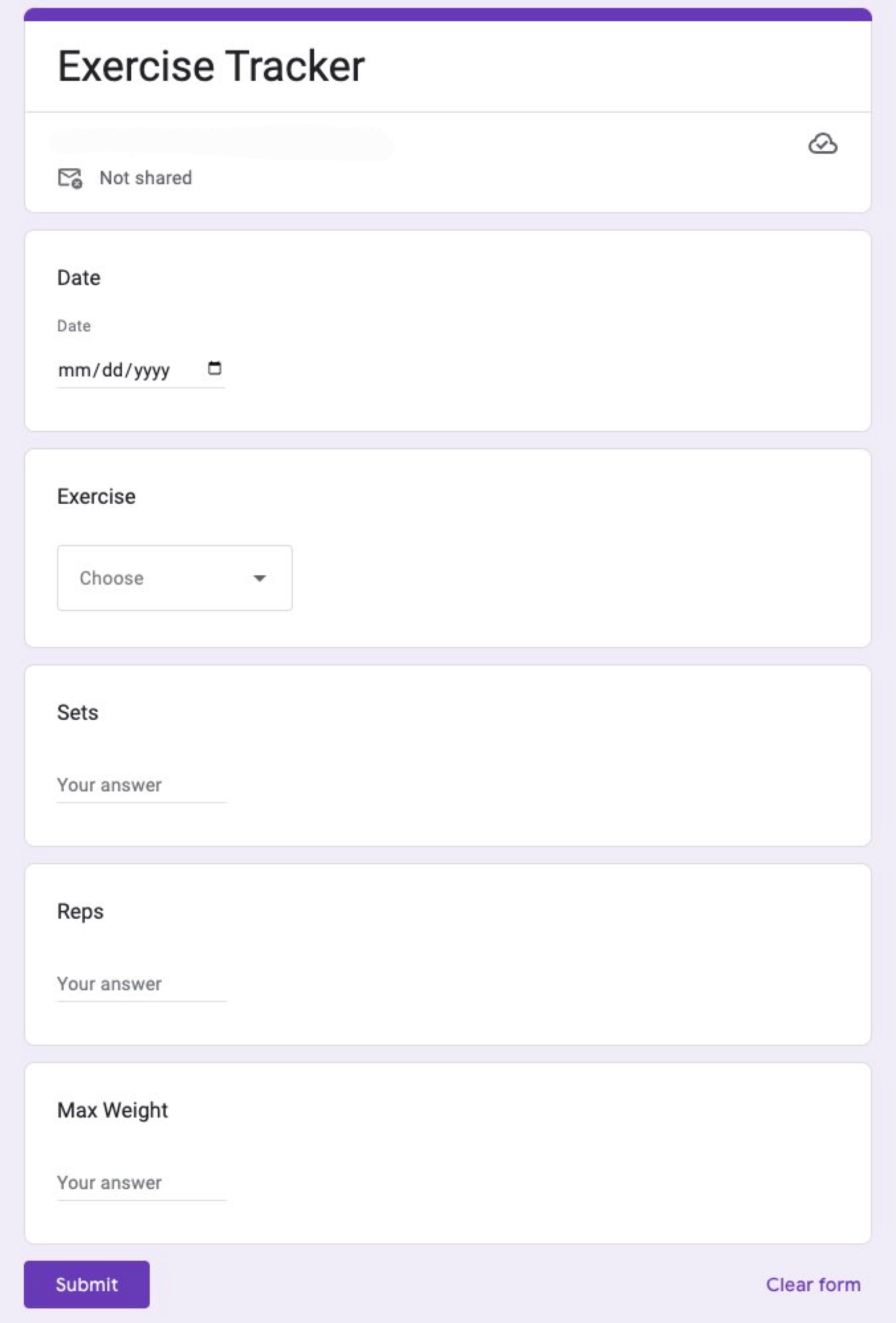
Creating a Google Form
In order to create a place to input data, a Google Form is required. The questions answered will automatically link with the Google Sheet, where the inputs can be organized and formatted to be shown on a Dashboard
- On a blank Google Sheet, rename it "Exercise Tracker Data"
- Locate the "Create a New Form" Button under the Tools tab of your Google Sheet
- Change the title of the new form to "Exercise Tracker"
- Note: For more information on how to navigate Google Forms, see About Google Forms
- Rename "Untitled Question" to "Date"
- To the right of the name, choose "Date" for the question type
- Add a new question and title it "Exercise Type"
- To the right of the name, choose "Dropdown" for the question type
- Replace Option 1 with Bench Press
- Add a new question
- Title the question "Sets"
- Choose the "Short Answer" question type
- Select "Data Validation" under the "More Options" tab
- Set the input to "Number"
- Set the "Number" criteria to "Is number"
- Note: For the custom error text, any error message can be applied. A common error response in this case would be "Please enter number."
- Duplicate the questioned titled "Sets"
- Title the duplicate as "Repetitions"
- Duplicate the questioned titled "Repetitions"
- Title the duplicate as "Max Weight"
- Note: For this instruction, only Max Weight of the entire exercise will be tracked. To create a tracker for each individual weight used for each Set, simply repeat this process for any amount of Sets, while distinguishing which weight was used for each Set.